Best Tablets for Architects in 2026 (Top 6: Galaxy Tab, iPad Pro and More)

Discover the best tablets for architects designed to handle 3D modeling, rendering, and sketching efficiently. Find the perfect device to boost your workflow.
Design moves faster than your coffee cup. You need a tablet that keeps up with sketching, markup, and client pitches without hiccups.
Pick a device that handles precision, color, and file-heavy workflows. Work comfortably, present confidently, and still get home before the plans change.
Contents
- The Best Tablets for Architects
- iPad Pro (2020) — Pro-Grade Creative Tablet
- Galaxy Tab S7+ — Big Screen Creative Tablet
- iPad 10th Gen — All-Screen Everyday iPad
- Galaxy Tab S9 FE — Large S Pen Tablet
- Surface Book 3 — Convertible Powerhouse Laptop
- Surface Go 2 — Ultra-Portable Windows Tablet
- Final Thoughts on the Best Tablets for Architects
- How to Choose the Best Tablets for Architects
- Check Out the Best Tablets for Architects
- Also Check Out Other Helpful Articles
- Video About the Best Tablets for Architects
The Best Tablets for Architects
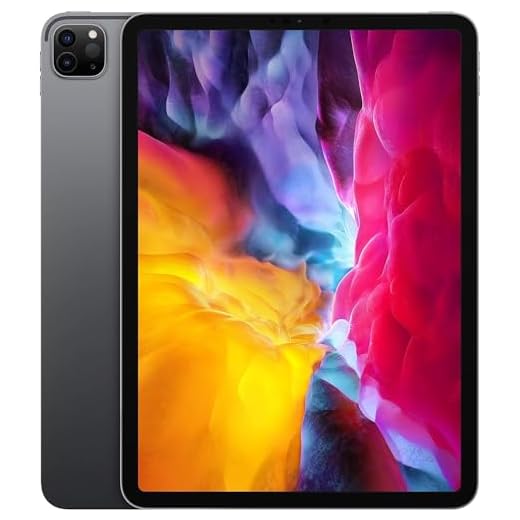


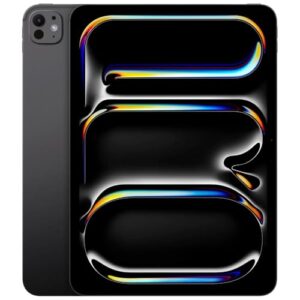
iPad Pro (2020) — Pro-Grade Creative Tablet
You get Pro-level performance, a color-accurate ProMotion display, and mature creative apps that make concept design and client presentations feel fluid and professional. The LiDAR and high-quality cameras add useful AR and field-capture options for site documentation.
Pros
- Powerful A12Z performance for demanding sketching and rendering
- ProMotion display with excellent color accuracy and low latency
- Full Apple Pencil and Magic Keyboard support for pro workflows
- LiDAR sensor aids AR, measurement, and spatial capture
Cons
- Premium price even for renewed models, and accessories add cost
- May be overkill if you only need simple markups and PDFs
Overview
The 2020 iPad Pro remains a very compelling choice for architects who need a high-performance, pen-first tablet. With the A12Z Bionic chip, ProMotion display, and LiDAR sensor, it offers a balance of speed, display quality, and advanced sensors that support AR-enabled workflows and accurate on-site capture.
Features that help in architectural workflows
- ProMotion 120Hz refresh for ultra-smooth drawing and pen tracking
- LiDAR scanner for faster depth sensing and AR measurements in field work
- Large suite of professional apps (Shapr3D, Morpholio, Procreate, Affinity) optimized for iPadOS
- Optional Magic Keyboard and Apple Pencil set up a near-laptop workflow for reviews and documentation
Practical use and limitations
You can do sketching, client presentations, AR-assisted site scans, and many 3D modeling tasks on-device. For final heavy BIM authoring (Revit, large Revit models) you’ll still rely on desktop workstations, but many architects use the iPad Pro as a primary creative device and a presentation tool because it handles most intermediate modeling and visualization tasks with ease.
Who this is for
Choose this if you want a top-tier tablet experience with industry-leading pen responsiveness, a broad professional app ecosystem, and extra capabilities like LiDAR for onsite measurement. If you want the best tablet-first creative workflow and are willing to invest in accessories, this is the strongest option in the roundup.
Galaxy Tab S7+ — Big Screen Creative Tablet
You’ll appreciate the big, high-resolution screen and low-latency S Pen when sketching and annotating large plans. It’s well suited for presentation work, detailed concept sketches, and media-rich review sessions on the go.
Pros
- Large 12.4" AMOLED-like display with excellent contrast
- 120Hz refresh rate and low-latency S Pen for natural drawing
- DeX mode and strong performance for multitasking
- Quad speakers and long battery life for presentations
Cons
- Android tablet app support for some pro tools still lagging desktop/iPad equivalents
- Replacement pen nibs/accessory availability can be limited
Overview
The Galaxy Tab S7+ is a flagship Android tablet with a large, high-quality display and a refined S Pen experience that many architects will love for sketching and client presentations. Its larger screen is ideal for reviewing full-scale drawings and visualizing layouts without squinting or constant zooming.
Advantages for architectural work
- Big, high-resolution screen provides more on-screen real estate for plans and sketches
- 120Hz refresh and low-latency S Pen deliver a very natural drawing experience
- DeX mode allows a more desktop-like multitasking environment for document management and client demos
Practical tips and limitations
If your workflow depends on native Revit or other heavy desktop BIM tools, this tablet is best used alongside a desktop workstation or through remote-desktop solutions. For concept development, markups, and immersive presentations, it’s excellent. Keep in mind Android’s tablet app catalog is improving but still not as consistent for pro architecture tools as iPadOS or full Windows.
Ideal user
Pick the S7+ if you want a large canvas for sketching and presenting, plus a fast S Pen experience, and you’re comfortable bridging to desktop tools when you need full BIM power.
iPad 10th Gen — All-Screen Everyday iPad
You benefit from a mature app ecosystem and responsive hardware for drawing, reviewing plans, and markup workflows. The A14 chip and Liquid Retina display make it a dependable device for everyday architectural tasks and client presentation work.
Pros
- Strong app ecosystem with many architecture-focused apps
- Solid performance (A14) for sketching and multitasking
- Consistent updates and long software support
- Good display and reliable build quality
Cons
- Requires separate Apple Pencil/keyboard accessories (sold separately)
- Lacks the raw performance and display features of iPad Pro models
Overview
The 10th‑generation iPad is a practical, well-rounded tablet that brings a large Liquid Retina display and reliable performance from the A14 Bionic chip. For architects who value access to tablet-optimized professional apps — note-taking, 2D/3D sketching, and PDF markups — it’s a very capable day-to-day device.
Key features that matter to architects
- Access to industry-friendly apps like Shapr3D (with limitations), Morpholio Trace, Concepts, and robust PDF/markup tools
- Smooth Apple Pencil support (requires compatible Pencil and adapter/case depending on generation)
- Lightweight chassis and good battery life for long client meetings or site visits
Practical workflow notes
You can comfortably sketch concepts, annotate drawings, and present screens to clients. For precision modeling or full Revit workflows you’ll still rely on desktop hardware, but many architects use the iPad for early design, client presentations, and quick measurements.
Considerations
If you want the absolute best display quality, ProMotion refresh rates, or the highest-end GPU for 3D modeling, the iPad Pro is a step up. If you want a balanced, reliable tablet with great apps and longevity, this iPad is a strong, practical choice.
Galaxy Tab S9 FE — Large S Pen Tablet
You get a large, responsive screen and an included S Pen at a midrange price, making this an efficient everyday tool for sketches, markup, and on-site notes. Battery life and IP68 durability let you work longer and in varied conditions without constant charging.
Pros
- Included S Pen with low latency
- Bright 10.9" display with good color and real estate
- Long battery life and IP68 water/dust resistance
- Expandable storage and lightweight, durable build
Cons
- Android app ecosystem less optimized for heavy BIM apps
- Not as color-accurate or as powerful as flagship tablets
Overview
This Galaxy Tab S9 FE balances price, portability, and pen input in a way that makes it attractive if you want a lot of screen and a full stylus experience without paying flagship prices. You can expect solid daily performance, useful battery life for long site days, and the included S Pen for sketching, markups, and quick notes.
Key strengths for architects
- Large 10.9" display that gives you more drawing and plan real estate without becoming cumbersome to carry
- Included S Pen for pressure-sensitive sketching and quick annotations
- IP68-rated durability helps when you need to work in dusty or wet conditions
- Expandable storage via microSD so you can keep drawings and reference libraries on-device
Practical usage and limitations
You can run most sketch and note-taking apps (Samsung Notes, Concepts, Sketchbook) comfortably, and the tablet is excellent for conceptual sketching, client markups, and lightweight plan review. For heavy CAD/BIM work you'll likely rely on cloud-based viewers or remote-desktop solutions because native Android options are limited compared with desktop software.
Who should choose this
If you want an inexpensive, durable tablet with a high-quality pen and long battery life for on-site sketches, client presentations, and portable review, this is a practical choice. If your workflow needs native Revit or other full desktop tools, consider a Windows tablet or higher-end iPad Pro instead.
Surface Book 3 — Convertible Powerhouse Laptop
You get a full Windows environment with laptop-class performance and a detachable display for tablet-style sketching or presentation. This makes it a strong choice if you need desktop CAD/BIM capabilities plus pen input for on-the-go sketching and reviews.
Pros
- Full Windows desktop for native Revit/AutoCAD/SketchUp
- Detachable display gives tablet-style sketch and presentation mode
- High-resolution PixelSense display with pen support
- Strong build quality and good battery life for a performance device
Cons
- Heavier and bulkier than most pure tablets
- Older generation hardware may show its age compared to modern ultrabooks
Overview
The Surface Book 3 blends powerful laptop hardware with a detachable touchscreen that turns into a large tablet for sketching or client review. Because it runs full Windows, you can install the desktop versions of Revit, AutoCAD, Rhino, and other pro tools — a key advantage if you need full application compatibility on the move.
Why architects might choose it
- Native desktop application support means you can run the same software you use in the office without remote-desktop workarounds
- The detachable screen and Surface Pen support make it convenient for sketches, markups, and presentations
- The high-resolution PixelSense panel offers sharp detail for CAD viewing and plan review
Practical considerations and limitations
You’ll enjoy full software compatibility, but you should be aware of size and weight: as a convertible performance machine it’s heavier than a plain tablet. Battery life depends on workload; under heavy CAD loads you’ll see shorter runtimes. Also, since this is an earlier generation model, check the CPU/GPU configuration carefully to ensure it meets your modeling needs.
Who should pick this
If you want a single machine that can run full desktop BIM/CAD applications and also serve as a pen-enabled tablet for sketching and review, this strikes a compelling balance. If mobility and light weight are higher priorities than raw desktop performance, consider a lighter tablet or Ultrabook alternative.
Surface Go 2 — Ultra-Portable Windows Tablet
You get the convenience of full Windows in a very compact form factor, which is great for note-taking, email, and quick plan reviews on-site. Heavy modeling and large BIM files will be limited by the modest CPU, so it’s best as a companion device rather than a primary workstation.
Pros
- Very portable and lightweight for site visits
- Runs full Windows apps for compatibility with standard office tools
- Good screen and optional Signature Type Cover for laptop-like productivity
Cons
- Limited CPU/GPU power for heavy CAD or large BIM models
- Battery life and performance degrade under sustained loads
Overview
The Surface Go 2 is aimed at architects who need a highly portable Windows tablet for on-site note-taking, plan reviews, and light desktop app usage. It’s small and light enough to carry all day, and it can run familiar Windows tools — but it’s not intended as a replacement for a powerful CAD workstation.
How it fits into an architecture workflow
- Use it for email, schedule management, PDF markups, sketches (with Surface Pen), and lightweight file browsing
- Run desktop apps in a limited way (small Revit/AutoCAD files or viewers), or use it as a remote client to access a more powerful machine
- The adjustable kickstand and Type Cover make it a convenient presentation and documentation tool on site
Practical limitations
Expect constrained performance with complex 3D models and large BIM files — rendering and large model navigation will be slower than on beefier Surface devices. Battery life is fine for light tasks but will drop with heavier usage. Consider it a portable companion that bridges fieldwork and the office rather than a full replacement for your workstation.
Who should buy
Choose the Surface Go 2 if you prioritize portability and Windows compatibility for light duty: site documentation, quick markups, meeting notes, and remote access to heavier desktop machines. If you need to author large BIM models on the go, step up to more powerful Surface or laptop hardware.
Final Thoughts on the Best Tablets for Architects
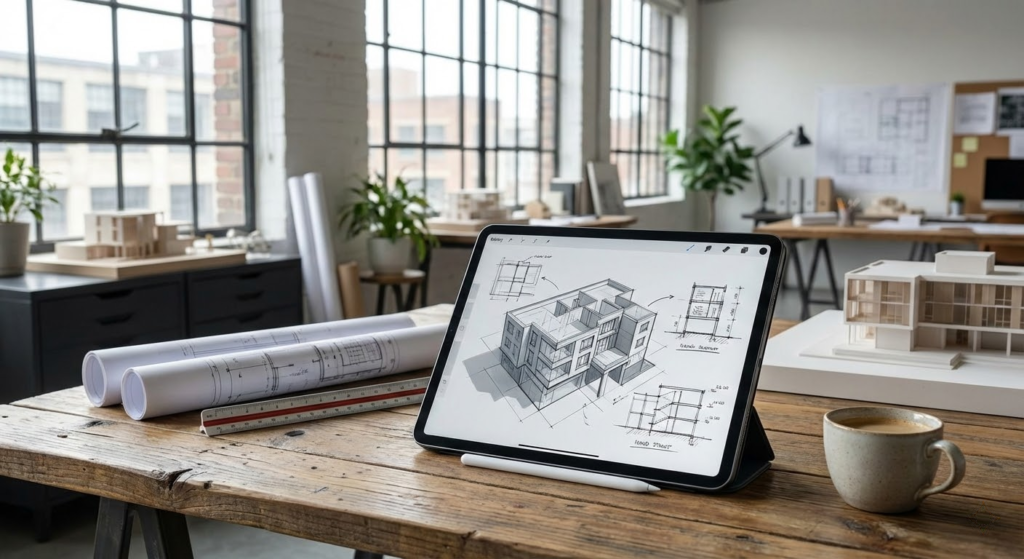
For most architects who split time between concept sketching, client presentations, and on-site documentation, the iPad Pro (2020) is the best pick. It brings Pro-level performance, a color-accurate ProMotion display, mature creative apps, and LiDAR for AR/site capture — ideal for fast concept iteration, polished presentations, and capturing context on site.
If you prioritize a LARGE canvas and a natural pen feel for detailed plan work and annotation, choose the Galaxy Tab S7+. Its big, high-resolution display and low-latency S Pen make it excellent for large-format sketching, markup, and collaborative review sessions when you need to show more detail without zooming in constantly.
How to Choose the Best Tablets for Architects
Tablets have become powerful tools for architectural work, offering portability without sacrificing performance. From sketching concepts to reviewing blueprints and presenting projects to clients, choosing the best tablets for architects requires careful attention to hardware, display quality, and software compatibility. Below are the key factors to consider before making your decision.
Performance Matters: Processor and RAM for Professional Workflows
Architectural apps demand more power than everyday applications. Tasks like rendering, handling large CAD files, and multitasking between design tools require a strong processor paired with sufficient RAM.
For smooth performance, look for tablets with high-end processors and at least 8GB of RAM. This ensures responsive interaction when zooming into detailed drawings, switching between apps, or working with complex 3D models. Higher RAM options are especially valuable for professionals who rely on advanced modeling and visualization software.
Display Quality Is Essential for Precision and Detail
The screen is one of the most critical elements when choosing a tablet for architectural use. A large display—typically 11 inches or more—provides enough space to view plans and models comfortably without constant zooming.
High resolution is equally important. Displays with at least Full HD resolution offer sharp lines and clear text, while higher resolutions deliver even more precision. Color accuracy also plays a key role, particularly for presentations and material studies, where realistic tones and contrast are essential.
Stylus Support Improves Sketching and Annotation
For architects who sketch, annotate blueprints, or mark up PDFs, stylus compatibility is a must-have feature. A responsive stylus allows for natural drawing, precise line control, and pressure sensitivity, making digital sketching feel closer to pen and paper.
Look for tablets that support advanced stylus features such as palm rejection and low input latency. These features help maintain accuracy and comfort during long design sessions.
Operating System and App Compatibility
The tablet’s operating system determines which design apps and tools you can use. Some platforms focus on optimized, touch-friendly design apps, while others offer broader compatibility with desktop-class software.
When choosing among the best tablets for architects, consider which apps you already use or plan to use—such as CAD viewers, 3D modeling tools, or note-taking apps—and ensure they run smoothly on the chosen system.
Best Organic Silicon Supplements
Storage Capacity for Large Files and Projects
Architectural projects often involve large files, including high-resolution drawings, 3D models, and presentations. A tablet with ample internal storage helps avoid constant file management.
A minimum of 128GB is recommended, but professionals working with complex projects may benefit from 256GB or more. Cloud integration can also be useful, allowing easy access to files across multiple devices.
Battery Life for On-Site and Client Meetings
Long battery life is crucial for architects who work on-site, travel frequently, or attend meetings throughout the day. A tablet that can last at least a full workday ensures uninterrupted productivity.
Efficient processors and optimized software can significantly improve battery performance, allowing you to sketch, review documents, and present designs without constantly searching for a power outlet.
Best Chromium Picolinate Supplements
Build Quality and Portability for Daily Use
Architects often carry their devices between offices, construction sites, and meetings. A slim, lightweight tablet with a durable build makes daily transport easier and safer.
Premium materials and solid construction add reliability, especially for professionals who rely on their tablets as primary work tools.
Connectivity Options Enhance Productivity
Strong connectivity expands how and where you can work. Wi-Fi performance is essential, but tablets with optional cellular connectivity provide added flexibility when working remotely.
Additional features such as USB-C support allow for external displays, file transfers, and accessory connections, making the tablet more versatile in professional environments.
By focusing on performance, display quality, stylus support, and software compatibility, you’ll be able to identify the best tablets for architects that fit both your creative workflow and professional demands.
Check Out the Best Tablets for Architects
Still not sure which one to choose? Click the link below to see the best-selling products.
Also Check Out Other Helpful Articles
Take a look at more useful articles that can help you make more informed decisions.
- Best Cost-Benefit Tablets in 2026 (Top 10: Xiaomi, Samsung and More)
- Best Tablets for Reading in 2026 (Top 6: Kindle, iPad and More)
- Best Tablets for Heavy Gaming in 2026 (Top 7: iPad Pro, ASUS ROG Flow and More)
Video About the Best Tablets for Architects
We created a video on the topic. Just click to watch.
Related Articles



About the Author

Sara Taylor has always loved storytelling. With a natural curiosity, she brings fresh perspectives to every article she works on.