Best Tablets for Drawing in 2026 (Top 6: iPad Pro, Wacom Cintiq and More)

Looking for the perfect tool for your art? Check out the best tablets for drawing selected to boost your creativity, considering display quality and precision.
You sketch on napkins. Now imagine those sketches on a 12.9-inch screen that actually behaves.
You want smooth strokes, believable color, and a tool that doesn’t get in your way. Short learning curve. Big results. No drama.
Think of a tablet as your digital sketchbook — but faster.
You want portability sometimes and a big, accurate canvas other times. This roundup cuts through the specs and tells you which devices actually help you draw better, not just look shiny.
Contents
- The Best Tablets for Drawing
- 12.9-inch iPad Pro (M1) 256GB
- Wacom Cintiq 22 Pen Display Tablet
- Microsoft Surface Pro 8 13-inch Touch
- XP-PEN Artist 24 Pro 2.5K Pen Display
- Wacom Cintiq 16 Pen Display
- HUION Inspiroy Dial Wireless Graphics Tablet
- Final Thoughts on the Best Tablets for Drawing
- How to Choose the Best Tablets for Drawing
- Check Out the Best Tablets for Drawing
- Also Check Out Other Helpful Articles
- Video About the Best Tablets for Drawing
The Best Tablets for Drawing




12.9-inch iPad Pro (M1) 256GB
You get a near-laptop level of performance with a color-accurate, high-brightness display and Apple Pencil responsiveness that feels natural. The M1 power and ProMotion display make heavy brushes, complex layers, and real-time effects snappy and reliable.
Pros
- Outstanding Liquid Retina XDR display with ProMotion
- Very powerful M1 performance for multitasking and rendering
- Excellent Pencil responsiveness and low-latency stroke feel
- Great battery life and long-term software support
Cons
- High cost for the full drawing kit (Apple Pencil, keyboard)
- Limited to iPadOS app ecosystem compared to desktop apps
Why this tablet stands out
The 12.9-inch iPad Pro with the M1 chip is oriented toward artists who want a portable, powerful canvas. You’ll benefit from one of the best mobile displays available, with ProMotion smoothing, P3 wide color, and the Liquid Retina XDR panel that keeps highlights and shadow details accurate. The Apple Pencil (2nd generation — sold separately) delivers excellent low-latency input and tilt support that closely mimics natural media.
Key features and what they mean for you
- 12.9-inch Liquid Retina XDR with ProMotion for ultra-smooth strokes and excellent color fidelity
- Apple M1 chip gives laptop-class performance for large files and real-time effects
- Deep app ecosystem optimized for touch and Pencil input (Procreate, Affinity Photo, Photoshop on iPad)
You’ll find sketching, painting, and even light 3D work flies on this hardware, and the screen size is large enough to work comfortably without feeling cramped. If you already use iPadOS drawing apps, the workflow is one of the most polished available.
Limitations and practical tips
While the hardware is top-tier, you do trade off the flexibility of desktop software — certain feature sets in full desktop Photoshop, Illustrator, or 3D packages are still more complete on macOS/Windows. Accessories also add to the price: the Pencil is essential for drawing and is an extra purchase. If you plan to replace a drawing PC, consider how your favorite desktop-only tools map to iPadOS alternatives.
Practical tip: pair the iPad with a protective folio and a matte screen protector if you like a paper-like texture; many artists prefer that for more tactile feedback. If you need file compatibility with desktop apps, use iCloud, Dropbox, or export layered PSDs from Procreate to keep your workflow smooth.
Wacom Cintiq 22 Pen Display Tablet
You get a dependable, color-accurate Full HD display and the Pro Pen 2 with tilt and 8192 pressure levels, which together provide precise control for illustration and painting. It's a reliable workhorse for studio setups when you pair it with a capable desktop or laptop.
Pros
- Large 21.5" Full HD screen with anti-glare coating
- Pro Pen 2 provides excellent pressure sensitivity and tilt
- Solid build quality and ergonomic foldable legs
- Plug-and-play compatibility with Windows and macOS
Cons
- Not a standalone device — needs a computer
- Full HD resolution on a 22" panel can feel a bit limited
- Heavier and less portable than smaller pen displays
Who this is for
This Cintiq 22 is aimed at illustrators, animators, and designers who want a large on-screen canvas without the Pro-level price of Wacom's top models. You’ll use this as a dedicated creative display connected to your computer, so expect desktop-class performance and responsiveness driven by the host machine.
What you’ll get and key advantages
- 21.5-inch Full HD IPS display with anti-glare surface for comfortable long sessions
- Pro Pen 2 with 8,192 levels of pressure and tilt recognition for natural strokes
- Foldable stand and hand rests to reduce fatigue during extended drawing
The pen’s EMR technology means no charging and a familiar Wacom feel, which many professionals prefer for precise line work. The tablet is built to fit into a professional workflow, delivering predictable tracking and pressure curves that are easy to tune with Wacom drivers.
Limitations and real-world advice
Because it’s a pen display and not a computer, performance ultimately depends on your connected PC or Mac — complex brushes and large canvases will use system RAM and GPU. The 1080p resolution on a 22" panel is serviceable but not as crisp as QHD or 4K alternatives, so if pixel density is crucial you may want to move up to a higher-resolution model.
Practical tip: calibrate color and set pen pressure curves in the driver when you first set it up. If you do color-critical work, use a monitor calibration tool and consider a higher resolution if you frequently zoom out to view full compositions.
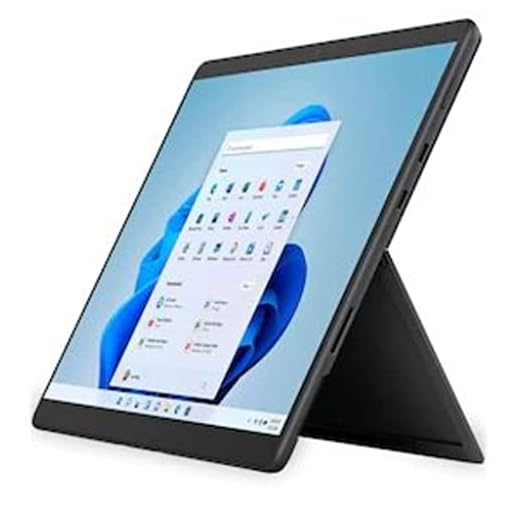
Microsoft Surface Pro 8 13-inch Touch
You’ll get a lightweight, full Windows 11 device that doubles as a capable drawing tablet when paired with the Slim Pen. The kickstand and Thunderbolt 4 connectivity make it flexible for travel, classes, and client presentations while running desktop-grade creative apps.
Pros
- Full Windows 11 experience with desktop-grade creative apps
- Detachable form factor with built-in kickstand and pen storage
- Bright, high-resolution 13" touchscreen with good color fidelity
- Thunderbolt 4 ports for fast external displays and peripherals
Cons
- Pen and keyboard are often sold separately, adding to cost
- Thermals can throttle under sustained heavy loads
- Integrated graphics limit heavy 3D or GPU-intense rendering
Why choose a Surface Pro 8 for drawing
The Surface Pro 8 is a strong choice if you want a single device that behaves like a laptop and a tablet. You’ll run full-featured desktop apps (Photoshop, Illustrator, Krita, Affinity) rather than mobile counterparts, which can unlock more advanced brushes, plugins, and file management. The Slim Pen (sold separately in many bundles) clicks into the keyboard and charges, making it convenient for mobile workflows.
Capabilities that matter for creatives
- 13-inch high-resolution touchscreen with accurate touch and pen input
- Intel Evo platform performance for responsive app usage and multitasking
- Thunderbolt 4 connectivity for external displays, fast storage, or GPU eGPUs where supported
This device is especially handy if you travel or teach — it slips into a bag and becomes a client-facing presentation surface. The pen-on-glass feel is slightly different from stylus-on-matte surfaces, so some artists prefer a matte protector to increase friction and get a more paper-like sensation.
Practical constraints and workflow notes
If your work relies on heavy GPU rendering or physics-heavy 3D, the integrated graphics will be a limitation. Battery life also varies significantly with workload; painting and general illustration are fine, but prolonged video editing or complex renders will drain battery faster.
Practical tip: invest in the official keyboard and Slim Pen bundle if you want the best integrated experience, and consider a matte screen protector for improved pen feedback during long sketching sessions.
XP-PEN Artist 24 Pro 2.5K Pen Display
You get a spacious 23.8" QHD canvas with solid color reproduction and a battery-free stylus that supports 8192 pressure levels. It’s a compelling choice if you want a large, affordable pen display that handles detailed work well.
Pros
- High-resolution 2.5K (2560x1440) IPS display for crisp detail
- 8192 levels of pen pressure with battery-free stylus
- Generous set of shortcut keys and customizable dial
- Good value compared with similarly sized competitors
Cons
- Heavier and bulkier — less portable
- Driver installation can be tricky on some systems
- Build quality and color accuracy slightly behind top-tier brands
Why it appeals to budget-conscious pros
The Artist 24 Pro brings a large 2.5K display to a price point that undercuts many established rivals. If you like working at a larger scale for detailed illustration, painting, or layout work, the pixel density and color range will let you see fine details without constant zooming.
Notable features and benefits
- 23.8-inch 2.5K QHD IPS display with wide viewing angles and good color
- Battery-free stylus with 8192 pressure levels and tilt support
- 20 programmable shortcut keys and a multifunctional dial for workflow speed
You’ll appreciate the physical controls for reducing tool switching and the dial for brush size or zoom control. Many artists report a short learning curve when moving from smaller tablets, and once set up, the Artist 24 Pro is a capable drawing surface for serious projects.
Practical caveats and setup notes
Driver quirks can appear on certain OS versions — take time to install the latest driver and test pen mapping before jumping into important work. The unit is heavier, so plan for a sturdy desk area and possibly a VESA or arm mount if you want more flexible ergonomics.
Practical tip: apply a matte screen protector for pen feedback and to protect the surface; also spend time calibrating color to match your reference displays if you do print or color-critical work.
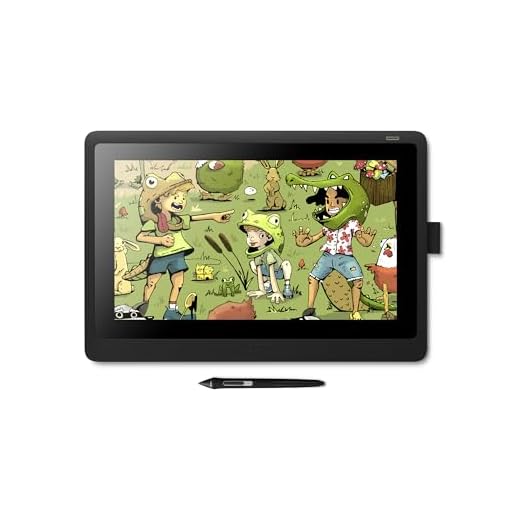
Wacom Cintiq 16 Pen Display
You benefit from Wacom’s trusted pen tech in a smaller, more affordable package that’s ideal for students and hobbyists. The 15.4" display hits a good balance between workspace and desktop footprint, while Pro Pen 2 keeps strokes smooth and accurate.
Pros
- Compact 15.4" form factor that fits tight desks
- Pro Pen 2 with 8192 pressure levels and tilt support
- Trusted Wacom drivers and pen feel
- More affordable entry to on-screen drawing
Cons
- Requires connection to a computer — not standalone
- Limited screen adjustability compared to larger Cintiqs
- No touch input (pen-only) which some users miss
Who should consider it
The Cintiq 16 is a strong option if you want the advantages of a pen display without the larger footprint or higher cost of bigger Cintiqs. You’ll find it well-suited for digital sketching, concepting, and student work where desk space is limited but pen performance matters.
Features that matter to your drawing practice
- 15.4-inch Full HD display optimized for creative work
- Pro Pen 2 with high pressure sensitivity and tilt recognition
- Lightweight and more portable than larger displays
Because the pen experience closely matches Wacom’s higher-end tablets, you’ll enjoy accurate stroke control and minimal lag. Driver stability and customization options (pressure curve, button mapping) are strengths that help you tailor the tablet to your preferred workflow.
Practical limitations and tips
You’ll need a computer to run the tablet, and the display’s tilt options are more limited than pro models — consider a separate adjustable arm if you need precise ergonomics. If you want multi-touch gestures or a larger drawing surface, stepping up to a bigger model or a different brand may make sense.
Tip: use a monitor arm or stand that offers tilt and height adjustments; that small investment improves comfort and reduces wrist strain during long sessions.
HUION Inspiroy Dial Wireless Graphics Tablet
You’ll get a compact, wireless drawing surface with an intuitive dial and programmable express keys that speed up repetitive tasks. It’s a strong pick if you want a responsive, battery-free stylus and a focus on productivity shortcuts rather than an on-screen display.
Pros
- Wireless operation and battery-free stylus for clutter-free desks
- Dual dials and multiple customizable express keys for fast workflows
- Compact 10.5 x 6.5-inch active area ideal for travel
- Works across Mac, Windows, and Linux
Cons
- No built-in screen — you'll map to a monitor
- Smaller active area may feel constrained for large strokes
- Pen feel and drivers vary compared to Wacom
Who this fits best
The HUION Inspiroy Dial is aimed at creators who prioritize shortcut efficiency and portability over an on-screen display. If you do a lot of photo retouching, vector work, or frequent brush adjustments, the dual dials and express keys let you shave time from repetitive tasks.
Features that enhance your workflow
- Two dials plus 8 express keys (programmable) so you can map common actions like brush size, zoom, undo, or layer navigation
- Battery-free stylus with tilt support and good pressure sensitivity for line variation
- Compact active area that’s easy to carry and fits on small desks
Because it’s a graphics tablet (no screen), you’ll be drawing on the pad while watching your monitor — this takes some getting used to, but many artists adapt quickly. The wireless mode keeps your workspace tidy and is convenient for mobile setups.
Limitations and practical advice
If you prefer drawing directly on-screen, this tablet won’t provide that experience. The smaller surface can also mean more hand movement mapped to on-screen distance, which may feel less natural for large sweeping strokes.
Tip: spend time customizing the dial functions per application so the controls match common actions in Photoshop, Clip Studio Paint, or your app of choice; that customization is where this tablet shines.
Final Thoughts on the Best Tablets for Drawing
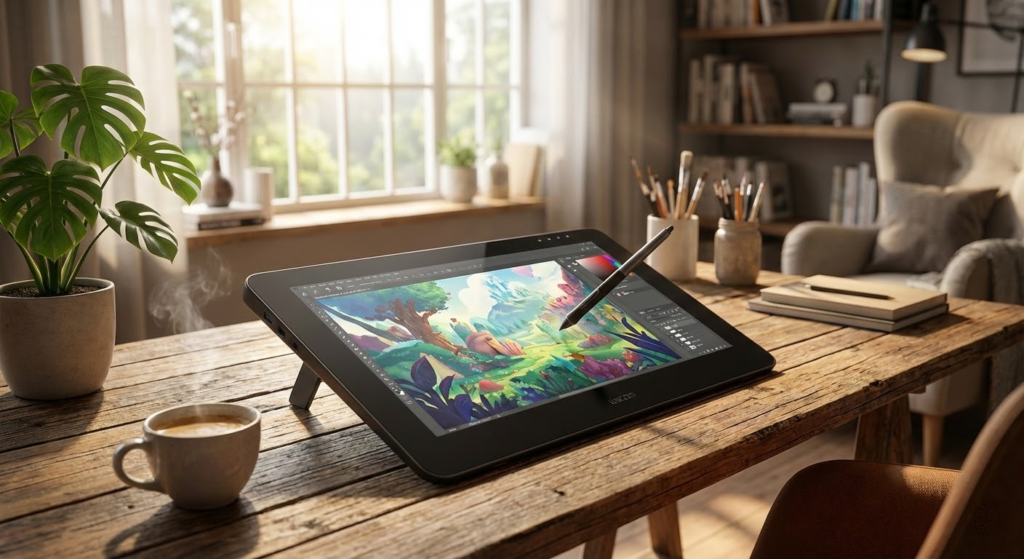
If you want one best-all-around drawing tablet, go with the 12.9-inch iPad Pro (M1) 256GB. It's the top pick for high-end digital painting thanks to its color-accurate, high-brightness ProMotion display, ultra-responsive Apple Pencil input, and the M1 chip that keeps heavy brushes and layers snappy. Choose this if you work on the go, love Procreate or mobile workflows, and value a smooth, lag-free experience.
If most of your drawing happens in a studio and you want a large, dedicated on-screen workspace, pick the Wacom Cintiq 22 Pen Display Tablet. It gives you a reliable Full HD canvas, Wacom’s Pro Pen 2 with tilt and 8192 pressure levels, and consistent color — ideal for detailed illustration, ink work, and serious Photoshop/Illustrator sessions on a desktop.
Quick alternatives: the Microsoft Surface Pro 8 is best if you need a full Windows 11 machine that doubles as a sketch device; the XP-PEN Artist 24 Pro is the budget-friendly large-display choice; the Wacom Cintiq 16 is perfect for learners who want Wacom quality in a compact form; and the HUION Inspiroy Dial is the go-to if you want a shortcut-driven, wireless drawing surface.
How to Choose the Best Tablets for Drawing
Finding the right device can make a huge difference in your creative process. The best tablets for drawing combine precision, performance, and display quality to help you sketch, illustrate, and design with confidence. Whether you’re a beginner or a professional artist, understanding the key features will help you choose a tablet that truly fits your workflow.
Best Evening Primrose Oil Supplements
Display Quality Is Essential for Digital Art
The screen is one of the most important elements in a drawing tablet. A high-resolution display allows you to see fine details, smooth lines, and accurate colors. Full HD is the minimum recommended, but Quad HD or higher resolutions provide a more immersive and precise drawing experience.
Screen size also matters. Tablets between 10 and 13 inches tend to offer the best balance between portability and drawing comfort. Larger screens give you more room to work, while smaller ones are easier to carry and use on the go.
Stylus Precision and Pressure Sensitivity Matter
A tablet designed for drawing should support an active stylus with high pressure sensitivity. The more pressure levels a stylus supports, the more control you’ll have over line thickness, shading, and texture.
Low latency is another critical factor. A responsive stylus ensures your lines appear instantly on the screen, making the drawing feel natural and closer to working on paper.
Performance Impacts Your Creative Flow
Smooth performance is key when working with drawing apps, layers, and large files. A powerful processor helps prevent lag, while sufficient RAM ensures you can multitask without interruptions.
For casual sketching, moderate hardware may be enough. However, if you work with complex illustrations or professional design software, choosing a tablet with higher processing power and more memory will keep your workflow fast and efficient.
Software and App Compatibility
The operating system determines which drawing apps you can use. Some platforms are known for optimized creative software, while others offer a wider range of customization and app choices.
Before choosing a tablet, consider which apps you plan to use for drawing, painting, or graphic design. Ensuring compatibility with your preferred tools is essential when selecting among the best tablets for drawing.
Best Nutritional Yeast Supplements
Battery Life for Long Creative Sessions
Nothing disrupts creativity like running out of battery mid-project. A tablet with long battery life allows you to draw for hours without constantly searching for a charger.
Look for models that can handle extended screen-on time, especially if you like drawing outdoors, traveling, or working away from your desk.
Build Quality and Comfort
Drawing often involves long sessions, so comfort matters. Lightweight tablets with slim designs are easier to hold and position. A solid build also ensures durability, especially if you plan to carry your tablet in a backpack or use it daily.
Some artists also prefer tablets with minimal screen glare and good palm rejection, which helps avoid accidental marks while resting your hand on the display.
Storage Space for Art Files
High-resolution artwork and layered project files can take up a lot of space. Choosing a tablet with ample internal storage—or support for cloud storage—helps you keep your work organized and accessible.
If you plan to save many projects locally, prioritize models with higher storage capacities to avoid running out of space too quickly.
Connectivity and Accessories
Modern drawing tablets often support accessories like external keyboards, stands, and screen protectors designed for a paper-like feel. These extras can significantly enhance productivity and comfort.
Connectivity options such as Bluetooth and USB-C also make it easier to transfer files, connect accessories, and integrate the tablet into your existing creative setup.
By evaluating display quality, stylus performance, hardware power, and usability, you’ll be able to confidently choose one of the best tablets for drawing and take your digital art to the next level.
Check Out the Best Tablets for Drawing
Still not sure which one to choose? Click the link below to see the best-selling products.
Also Check Out Other Helpful Articles
Take a look at more useful articles that can help you make more informed decisions.
- Best Cost-Benefit Tablets in 2026 (Top 10: Xiaomi, Samsung and More)
- Best Tablets for Reading in 2026 (Top 6: Kindle, iPad and More)
- Best Tablets for Heavy Gaming in 2026 (Top 7: iPad Pro, ASUS ROG Flow and More)
Video About the Best Tablets for Drawing
We created a video on the topic. Just click to watch.
Related Articles
About the Author

Sara Taylor has always loved storytelling. With a natural curiosity, she brings fresh perspectives to every article she works on.